
Submitting outage requests to NCPA Dispatch
How to submit, confirm, track, change and cancel outage requests in the NCPA Outage Request Portal.
Updated November 12, 2026. Questions: outage@ncpa.com · Dispatch Center (24 h) 916-786-3518.
Outage starting today? Don't use the portal. Call the NCPA Scheduling Coordinator at 916-781-4237.
Who can use the portal
The Outage Request Portal is where you ask NCPA Dispatch to schedule an outage or derate of a generating resource. It replaces emailing the Application for Work (AFW) form, although outage@ncpa.com still works if you need it.
The request form is on the portal's home page. There's no account to create and no password.
- Use your company email address. The portal accepts addresses at company domains that NCPA has approved. If your address isn't accepted, email the AFW form to outage@ncpa.com as before, or call Dispatch at 916-786-3518, and ask to have your company's domain added.
- Personal addresses (Gmail, Outlook.com and similar) can't be approved. Anyone who signs in sees every request from their own email domain, so only company domains are allowed. Senders on personal addresses keep using outage@ncpa.com.
Before you submit
| Opportunity | When to submit |
|---|---|
| Planned | At least 8 days before the proposed start. |
| Short-Notice Opportunity | No more than 7 days before the start. Maximum duration is 5 days. |
| Off-Peak Opportunity | At least 8 days before the start, within the applicable CAISO RA-month submission window. The outage must be scheduled and completed within the off-peak period (generic off-peak hours: HE23 through HE06 on weekdays, and all day Saturday, Sunday and WECC holidays). Solar PV resources have separate seasonal timing requirements. |
| Forced (not immediate) | A problem, not immediate, that needs an outage within 7 days. |
| Starting today | Don't use the form. Call the NCPA Scheduling Coordinator at 916-781-4237. |
Submit a request
The form opens with the timing rules and a reminder about same-day outages. Fields marked * are required.
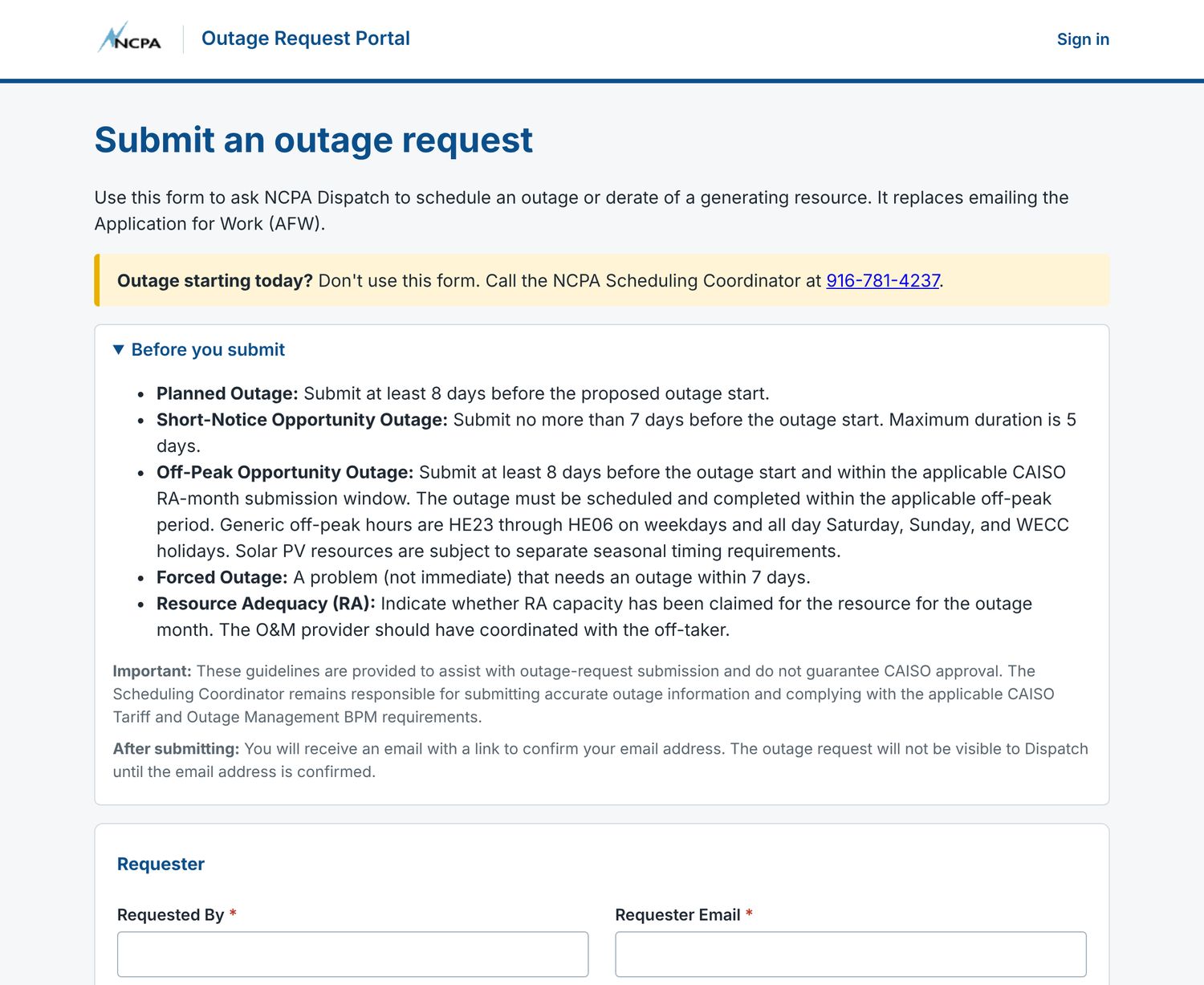
- Requester. Enter your name and your company email address. Company and phone are optional, but they help Dispatch reach you.
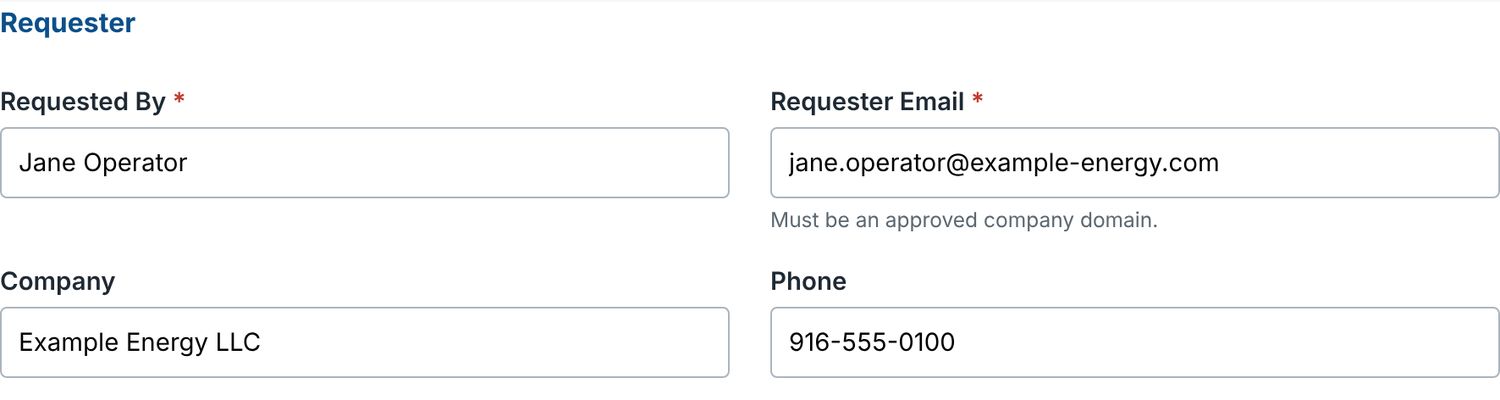
Requester details. The email must be at an approved company domain. - Resource. Type the CAISO Resource ID. If NCPA recognizes it, the portal fills in the SCID and Resource Type and shows the plant name under the field. Check the Resource Type, because it decides which other fields appear.
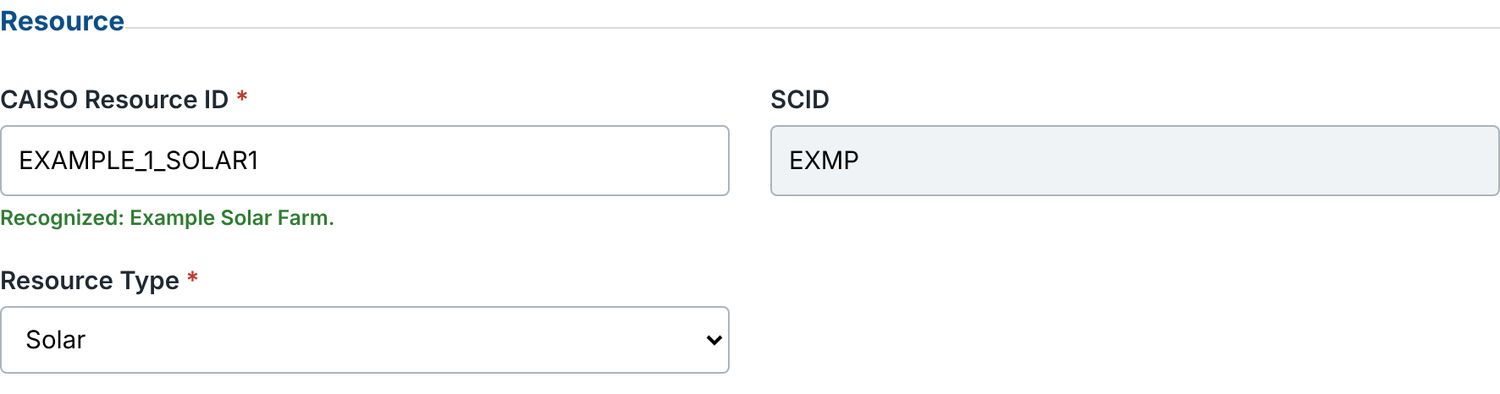
A recognized resource. SCID and Resource Type fill in, and the plant name shows under the ID. (Example data.) - Outage type and duration. Pick the Opportunity and the Nature of Work. If you aren't sure of the Nature of Work, choose Not sure - Dispatch to select. Enter the start and end in Pacific time on a 24-hour clock, in 15-minute steps. Answer the Resource Adequacy question: has RA been claimed for the outage month? Emergency return time is optional (for example "8-12 hours" or "N/A").
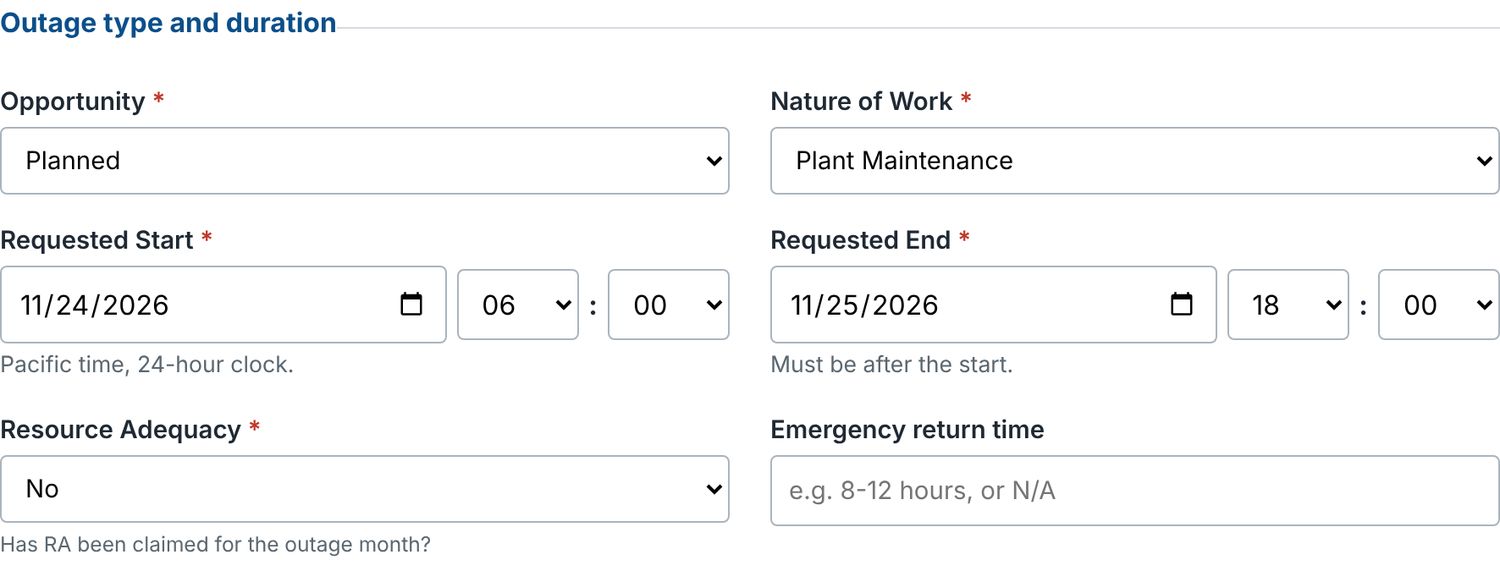
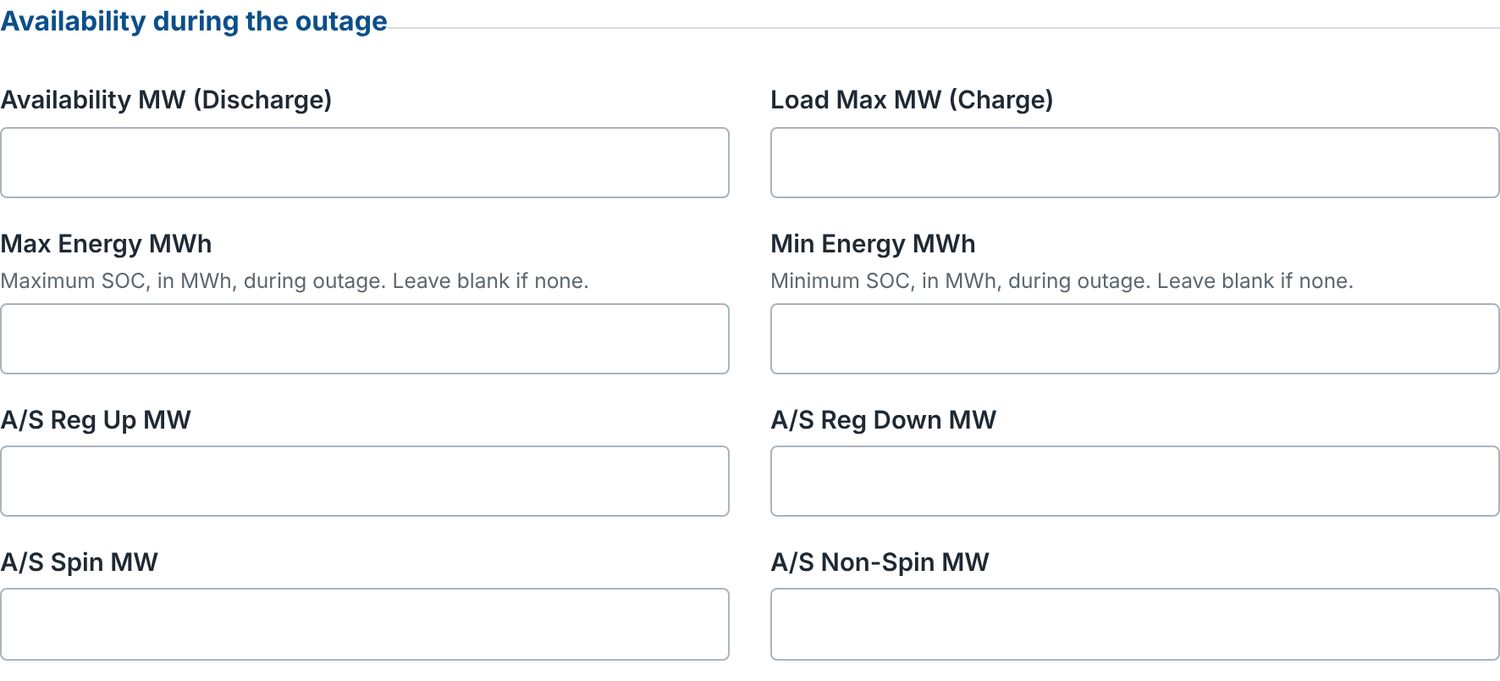
Outage type, timing and RA. Times are Pacific, 24-hour. - Availability during the outage. Enter the MW the resource can still provide. More fields appear for batteries and for resources that provide ancillary services (see the next section). Leave anything that doesn't apply blank.
- Work details. Describe the purpose of the outage and the work. Fill in Revises request # only if this request replaces an earlier one. If you can sign in, change the original request instead. Attach up to 5 files, 10 MB in total: PDF, Word, Excel, CSV, text or images.
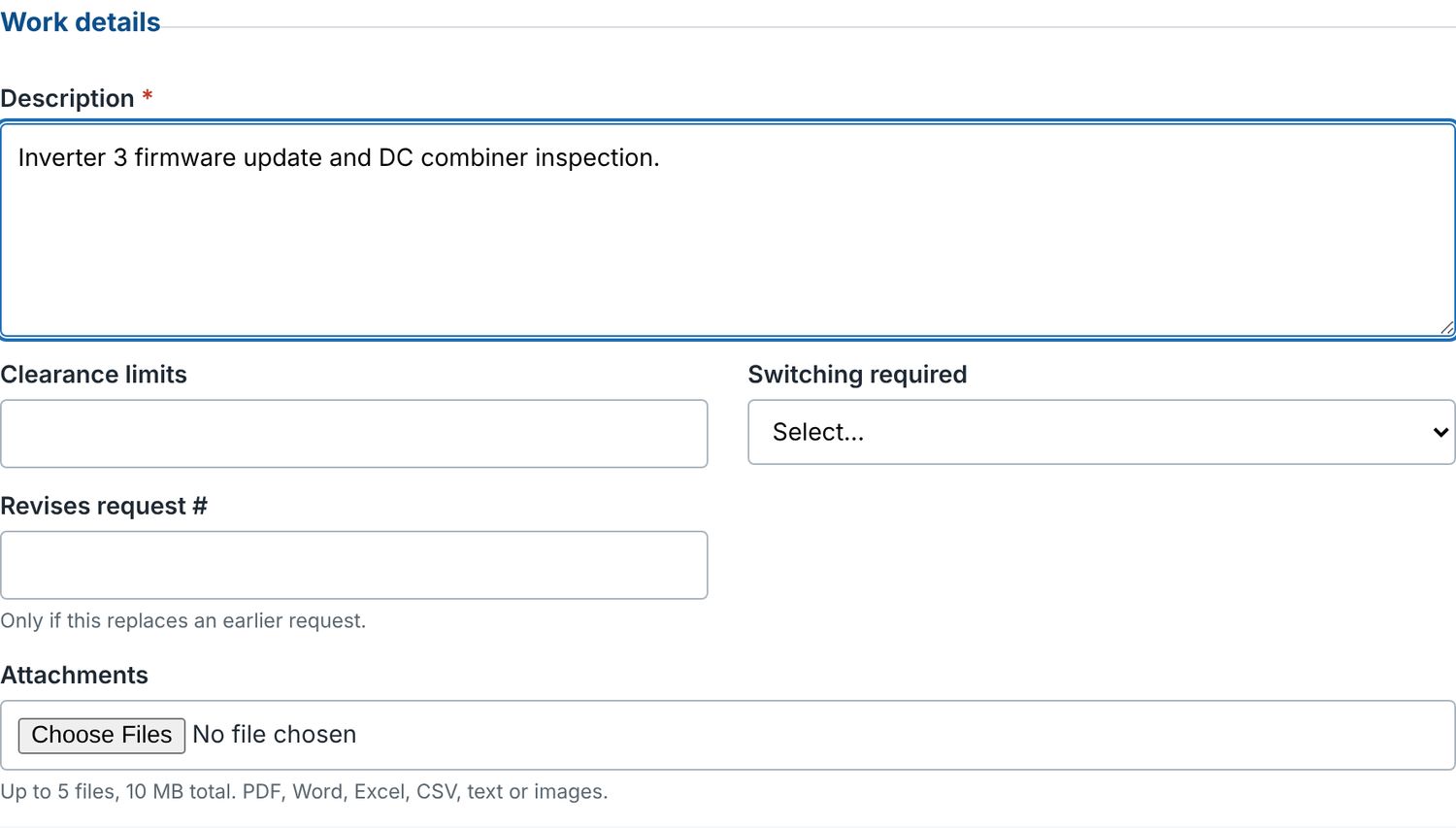
Work details and attachments. - Press Submit request. If anything needs fixing, a red box lists it above the button.
Fields that appear only when needed
The form shows extra fields only for the resources and work that need them.
| Fields | Appear when |
|---|---|
| Load Max MW (Charge), Max Energy MWh, Min Energy MWh (and "Availability MW" becomes "Discharge") | Resource Type is BESS |
| A/S Reg Up, Reg Down, Spin and Non-Spin MW | Resource Type is Thermal, Hydro, Geothermal, Biogas or BESS |
| PG&E TAFW number | Resource Type is Switchyard / Line, or Nature of Work is Transmission Induced |
| Test / energy schedule | Nature of Work includes "Test" (for example Unit Testing, New Generator Test Energy, RIMS Testing) |
| Clearance limits, Switching required | Resource Type is Switchyard / Line, or Nature of Work is Plant Maintenance or Plant Trouble |
Confirm your email address
If you aren't signed in, the portal asks you to confirm that the request came from you before Dispatch sees it.

- Open the email "Confirm your NCPA outage request #…" and select the link. The link works for 48 hours.
- On the page that opens, press Confirm request. The button is deliberate: some email security scanners open links automatically, and the button stops them from confirming requests on your behalf.
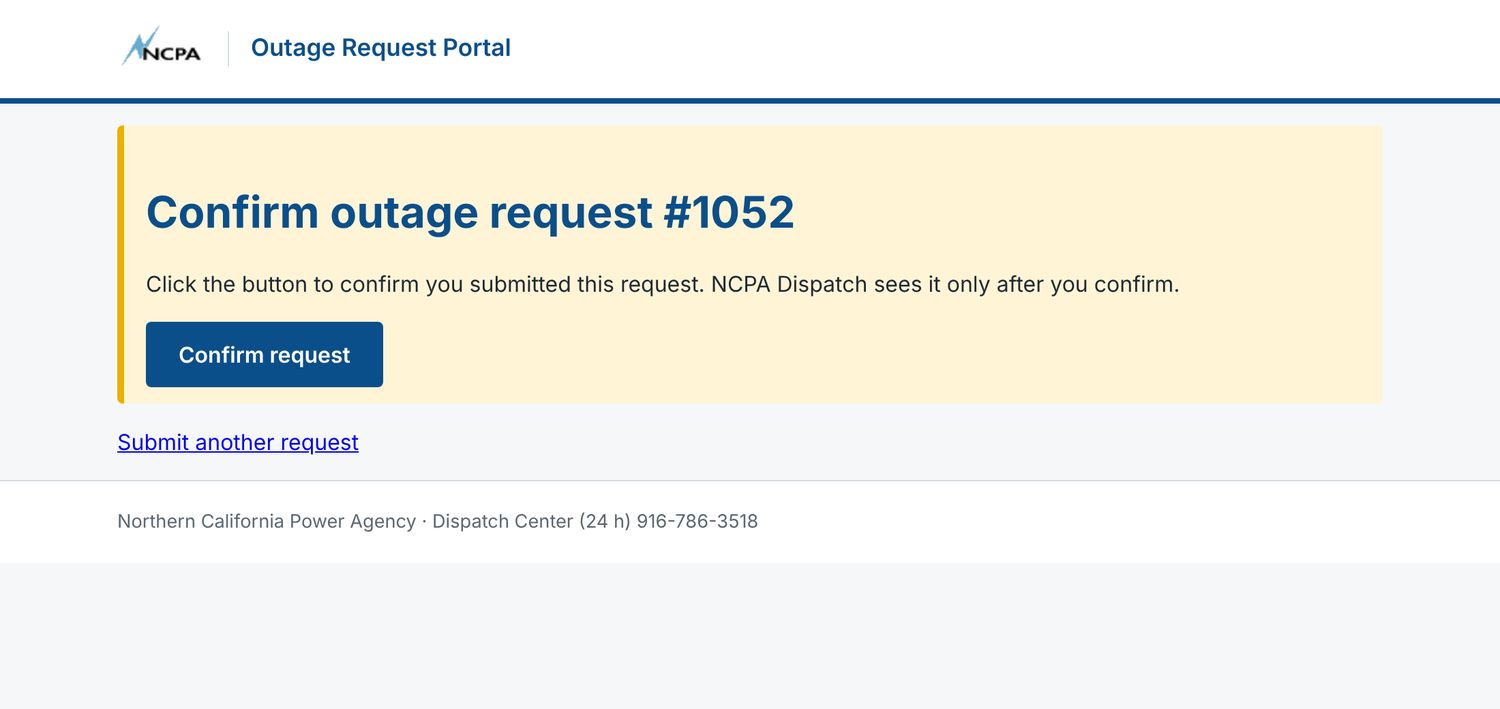
The confirmation page. - You'll see Request confirmed. The request now goes to Dispatch, and a receipt email follows.
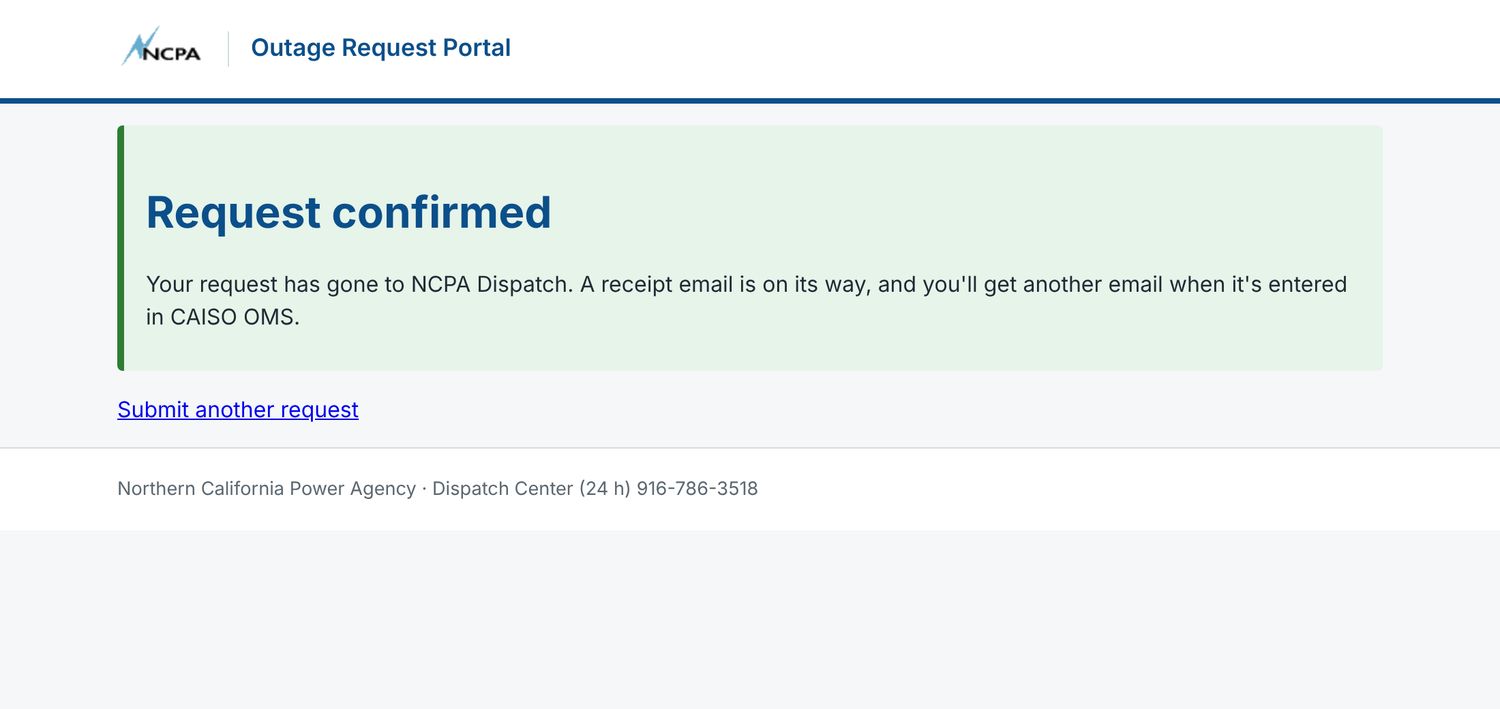
Confirmed. The request is now with NCPA Dispatch.
A request that's never confirmed stays Pending verification. Dispatch doesn't see it, and it doesn't appear in your company's list.
Skip this step by signing in. If you're signed in when you submit, the request goes straight to Dispatch with no confirmation email.
What happens next
| Email subject | When you get it |
|---|---|
| Received: outage request #… | Right after the request reaches Dispatch (once you've confirmed, or immediately if you were signed in). |
| Not accepted: outage request #… starts today | The start is today or earlier by the time the request reaches Dispatch. Call the Scheduling Coordinator at 916-781-4237. |
| CAISO OMS ID for outage request #… | When Dispatch enters the outage in CAISO OMS. It includes the OMS ID and a PDF of your AFW. |
| Message from NCPA Dispatch about outage request #… | When Dispatch sends you a note about the request. |
Replying: replies to any portal email go to outage@ncpa.com, which reaches NCPA Dispatch.
Sign in to see your company's requests
Signing in lets you see every request from your company's email domain, change one, or ask to cancel it. There's no password; the portal emails you a code.
- Select Sign in at the top right of the portal, enter your work email and press Email me a code.
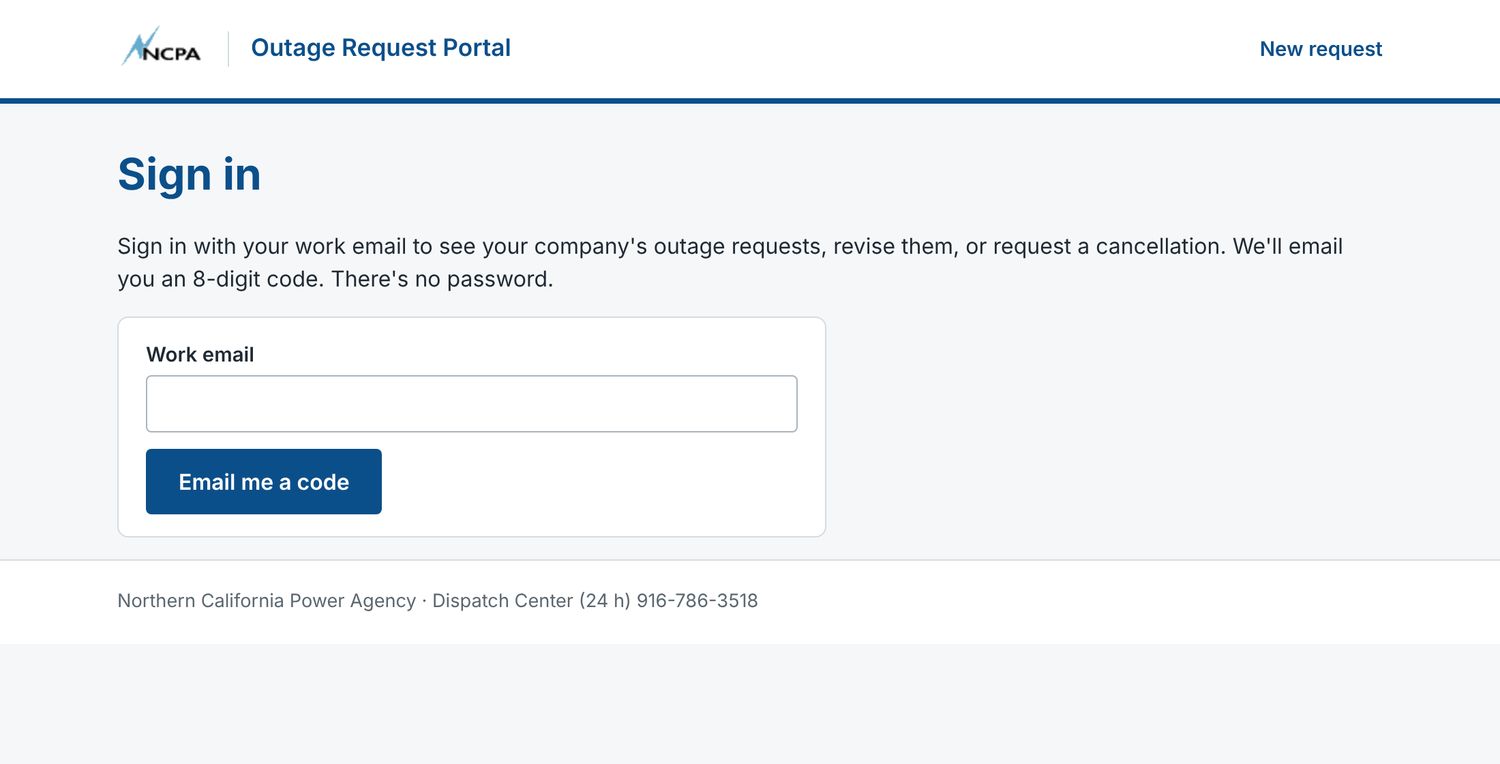
Sign in with your work email. - Enter the 8-digit code from the email "Your NCPA outage portal sign-in code". The code expires in 10 minutes.
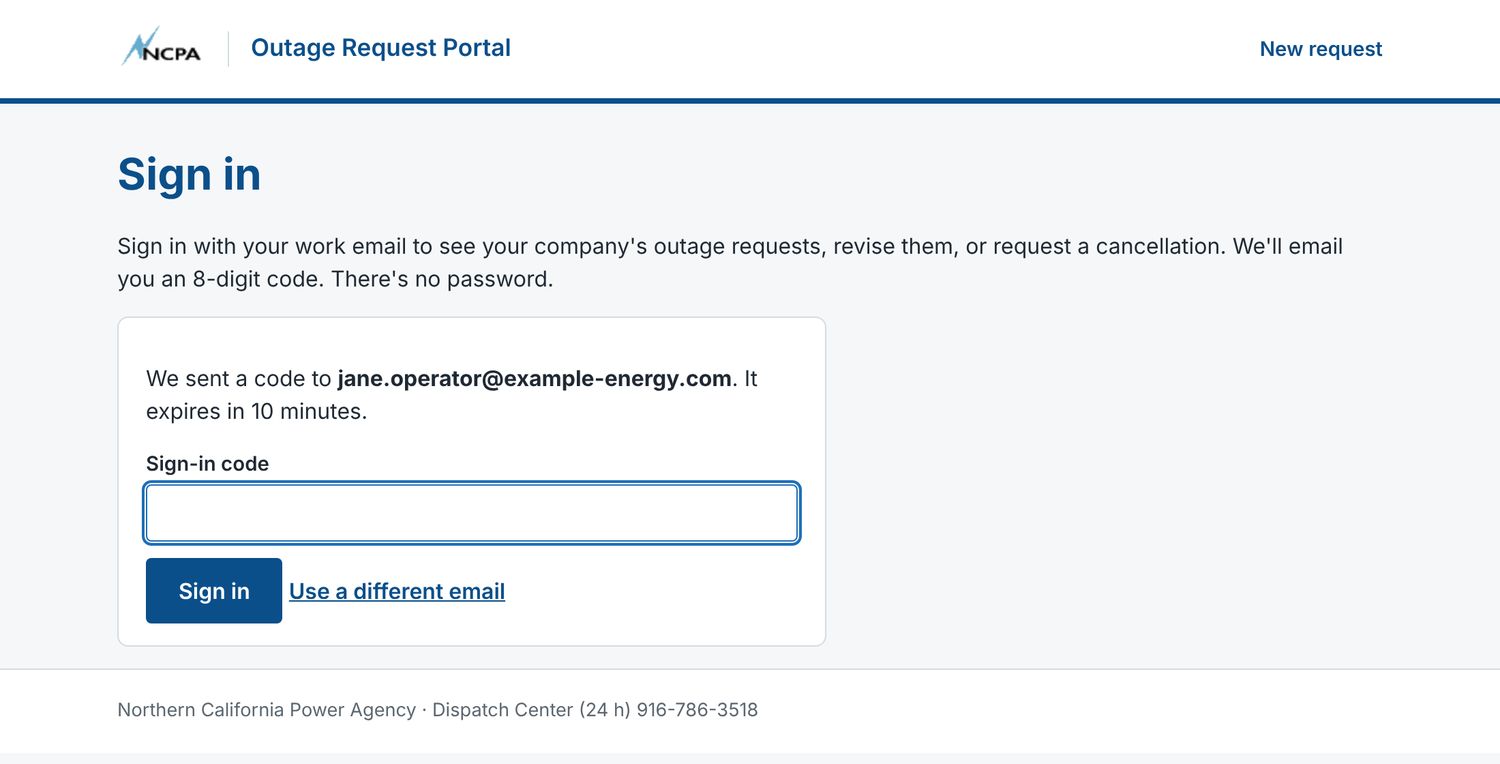
Enter the code. "Use a different email" starts over. - You stay signed in for 8 hours on that browser, or until you select Sign out.
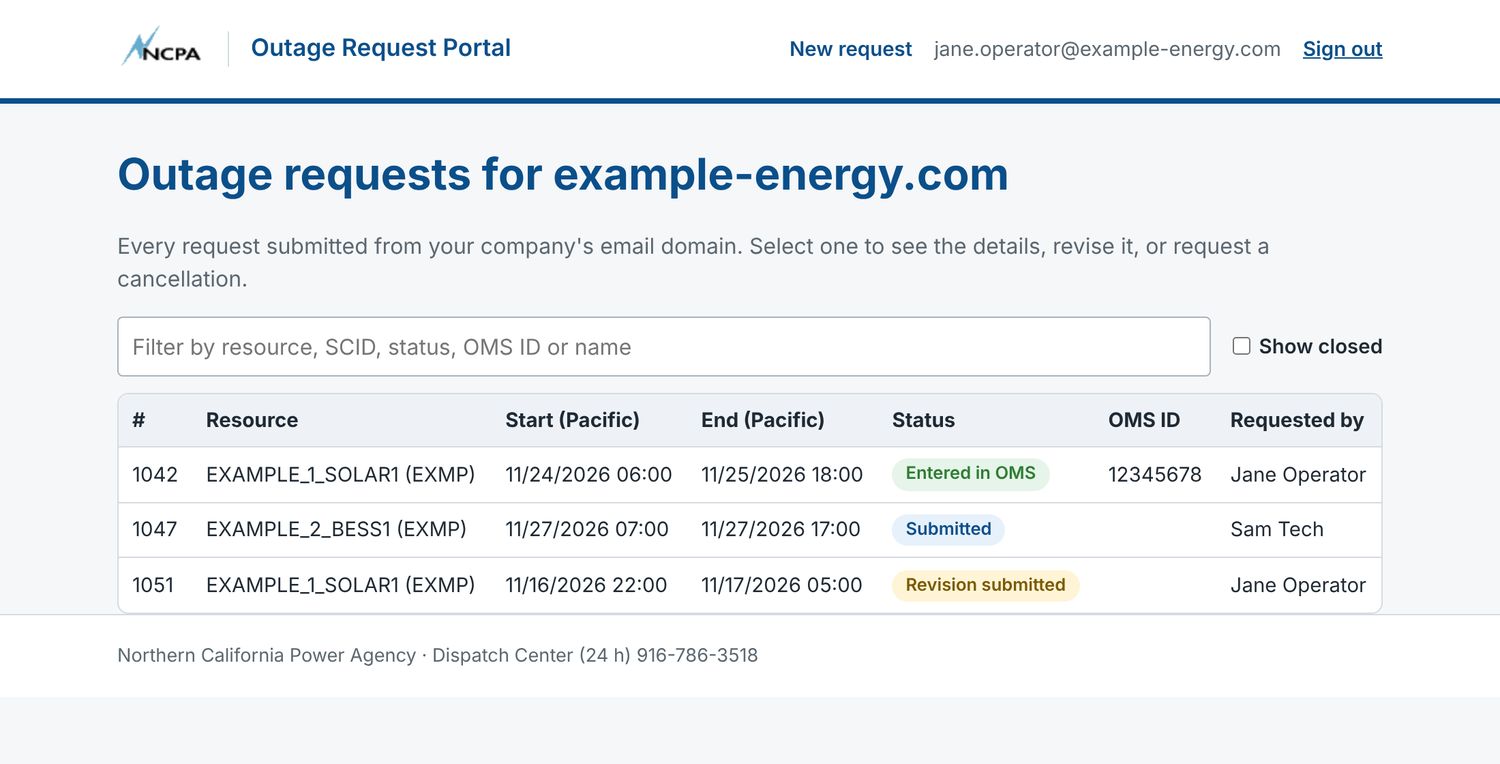
Closed requests (Withdrawn, CAISO Denied, Refused - call SC, Cancellation requested) are hidden until you tick Show closed.
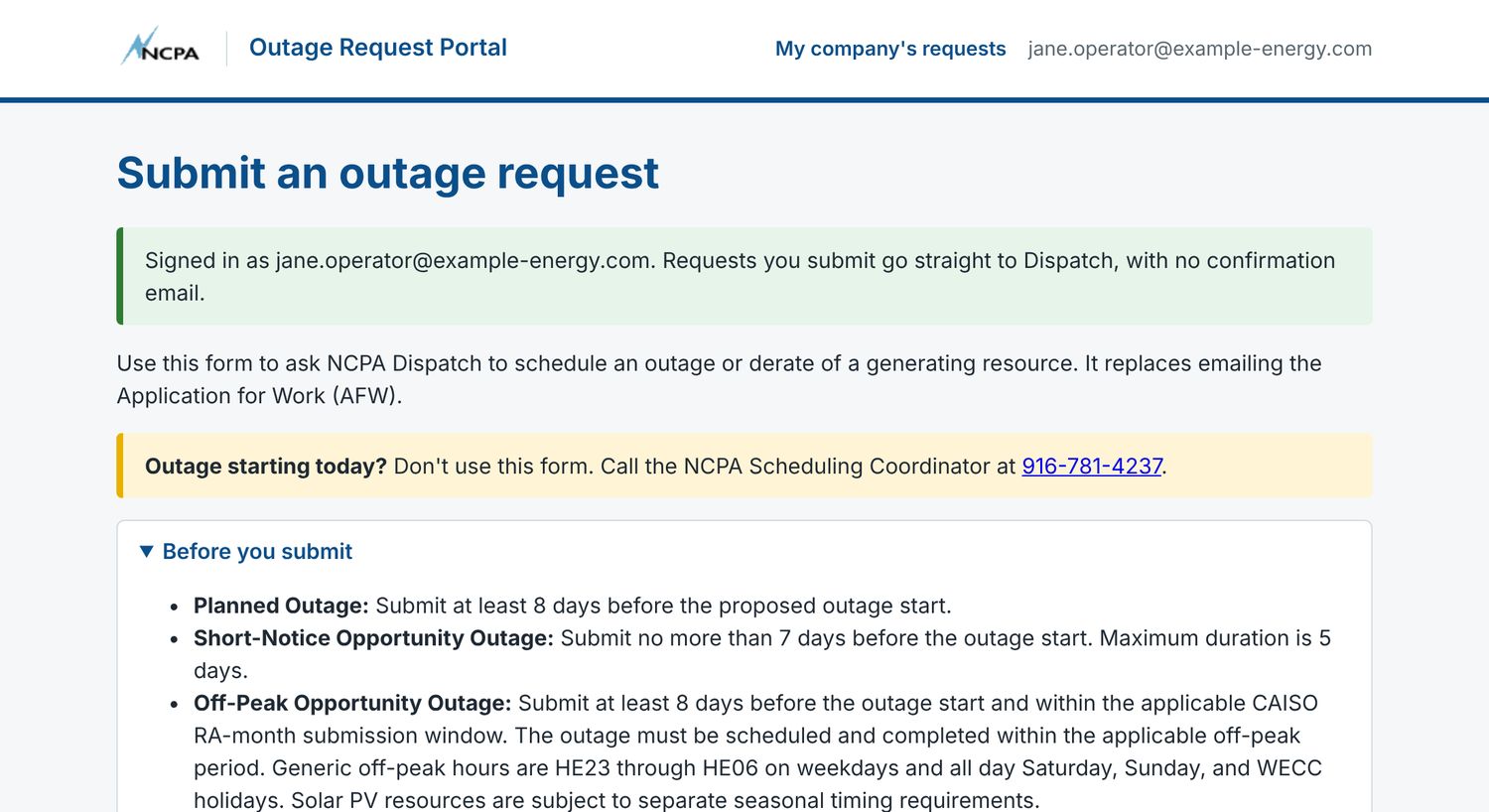
While you're signed in, the form fills in your email and tells you that requests go straight to Dispatch.
Open a request
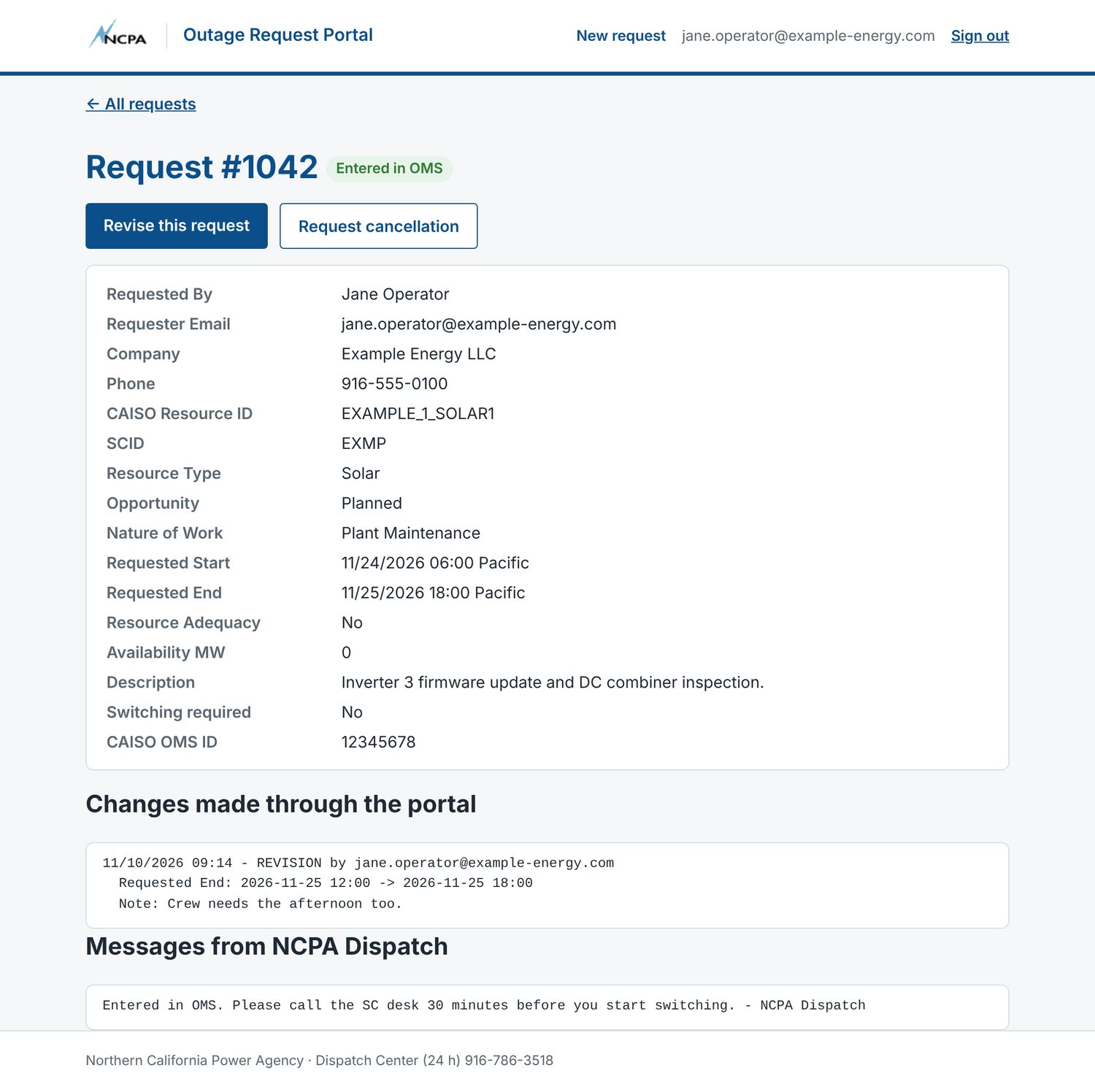
Select any row to see the full request, the CAISO OMS ID once Dispatch has entered it, every change made through the portal, and messages from Dispatch.
Change a request
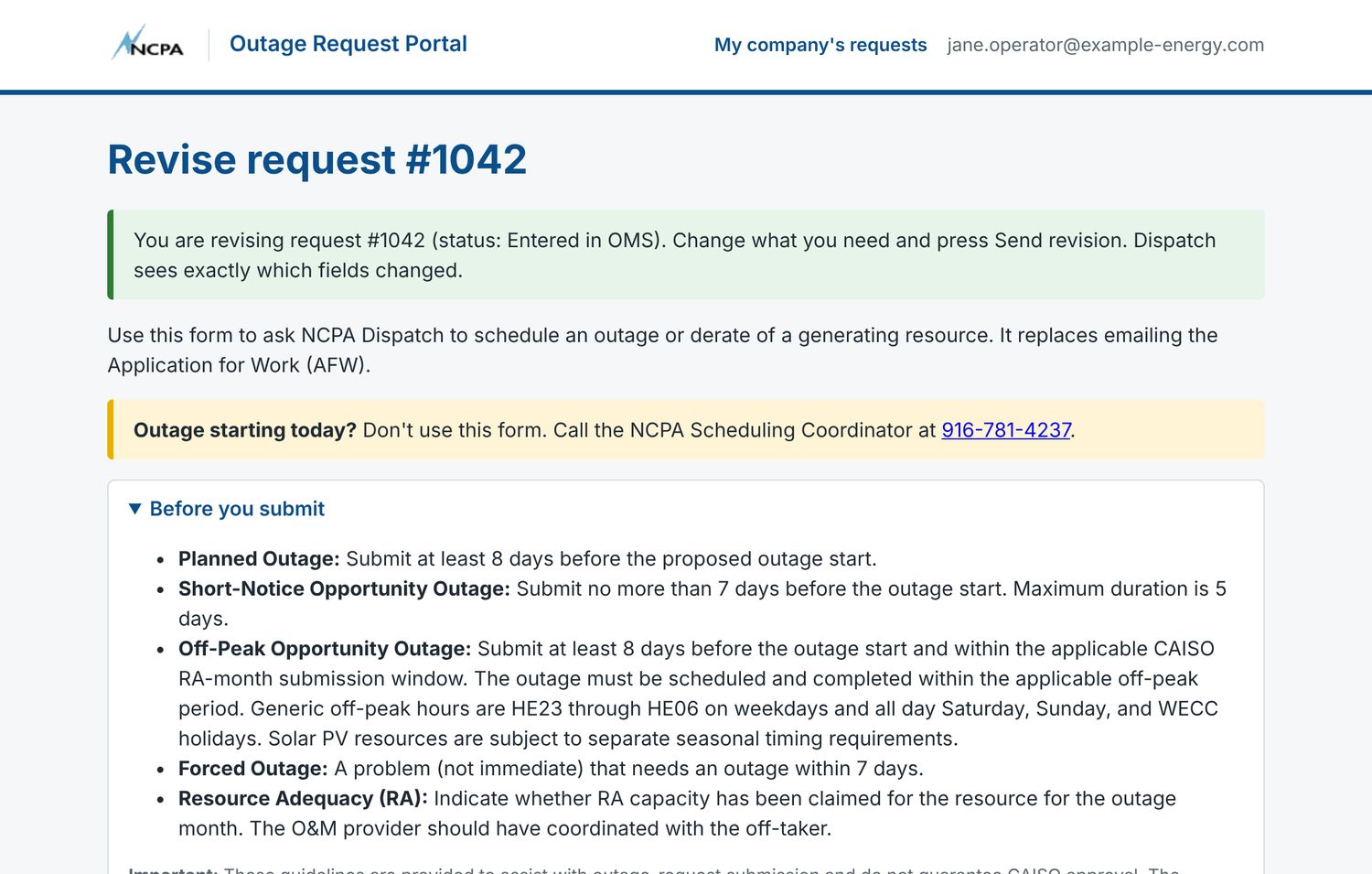
- Open the request and select Revise this request. The form opens with the current values.
- Change what you need. Add a note to Dispatch if it helps, then press Send revision.
- The status changes to Revision submitted. Dispatch is emailed exactly which fields changed, and the changes are listed on the request.
- You can't add attachments to a revision. Email extra files to outage@ncpa.com with the request number.
- A new start date can't be today or earlier.
- Requests that are Withdrawn, CAISO Denied, Refused - call SC or Cancellation requested can't be changed here. Call Dispatch at 916-786-3518.
- If the request was already entered in CAISO OMS, Dispatch updates the OMS card from your revision.
Ask to cancel a request
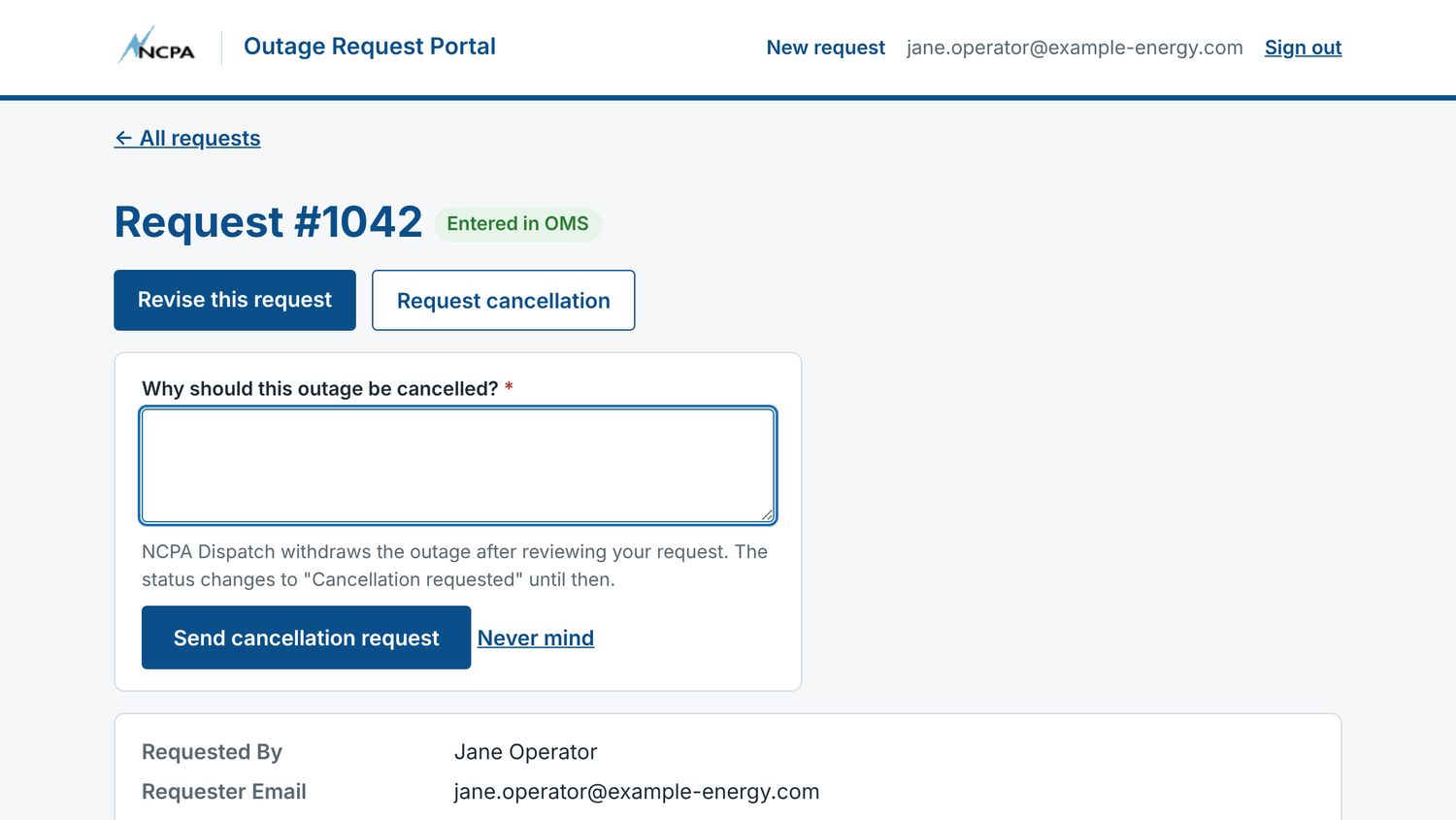
- Open the request and select Request cancellation.
- Say why the outage should be cancelled, then press Send cancellation request.
- The status changes to Cancellation requested. Dispatch withdraws the outage after reviewing it, and the status then becomes Withdrawn.
What each status means
| Status | What it means | Set by | Email to the submitter |
|---|---|---|---|
| Pending verification | Submitted from the web form but the email address isn't confirmed yet. Dispatch can't see it. | Automatic | Yes: the confirmation link |
| Submitted | Received. Dispatch hasn't reviewed it yet. | Automatic | Yes: a receipt |
| Under Review | Dispatch is reviewing it. | Dispatch | No |
| Needs Info | Dispatch needs more details. Expect a call, an email, or a message through the portal. | Dispatch | Only if Dispatch sends a message |
| RA Review (PCIR) | RA is claimed or unknown for the month, and NCPA is checking the RA impact. | Dispatch | No |
| Revision submitted | The submitter changed the request through the portal. Dispatch reviews the changes. | Automatic (portal) | No |
| Cancellation requested | The submitter asked to cancel through the portal. Dispatch withdraws the outage. | Automatic (portal) | No |
| Entered in OMS | Dispatch entered the outage card in CAISO OMS. | Dispatch | Yes: the CAISO OMS ID and the AFW PDF (sent when the OMS ID is entered) |
| CAISO Approved | CAISO approved the outage card. | Dispatch | No |
| CAISO Denied | CAISO denied the outage card. | Dispatch | No: Dispatch contacts the submitter |
| Withdrawn | Cancelled at the submitter's request, or replaced by a revised request. | Dispatch | No |
| Refused - call SC | The outage started today or earlier, so it was refused automatically. | Automatic | Yes: call 916-781-4237 |
If something goes wrong
| You see | What to do |
|---|---|
| "That email domain is not approved for online submission" | Your company's domain isn't on NCPA's approved list. Email the AFW form to outage@ncpa.com or call Dispatch, and ask for your domain to be added. |
| "Outages starting today (or earlier) can't be requested here" | Call the Scheduling Coordinator at 916-781-4237. |
| "Short-Notice outages can't be longer than 5 days" | Shorten the outage or choose a different Opportunity. |
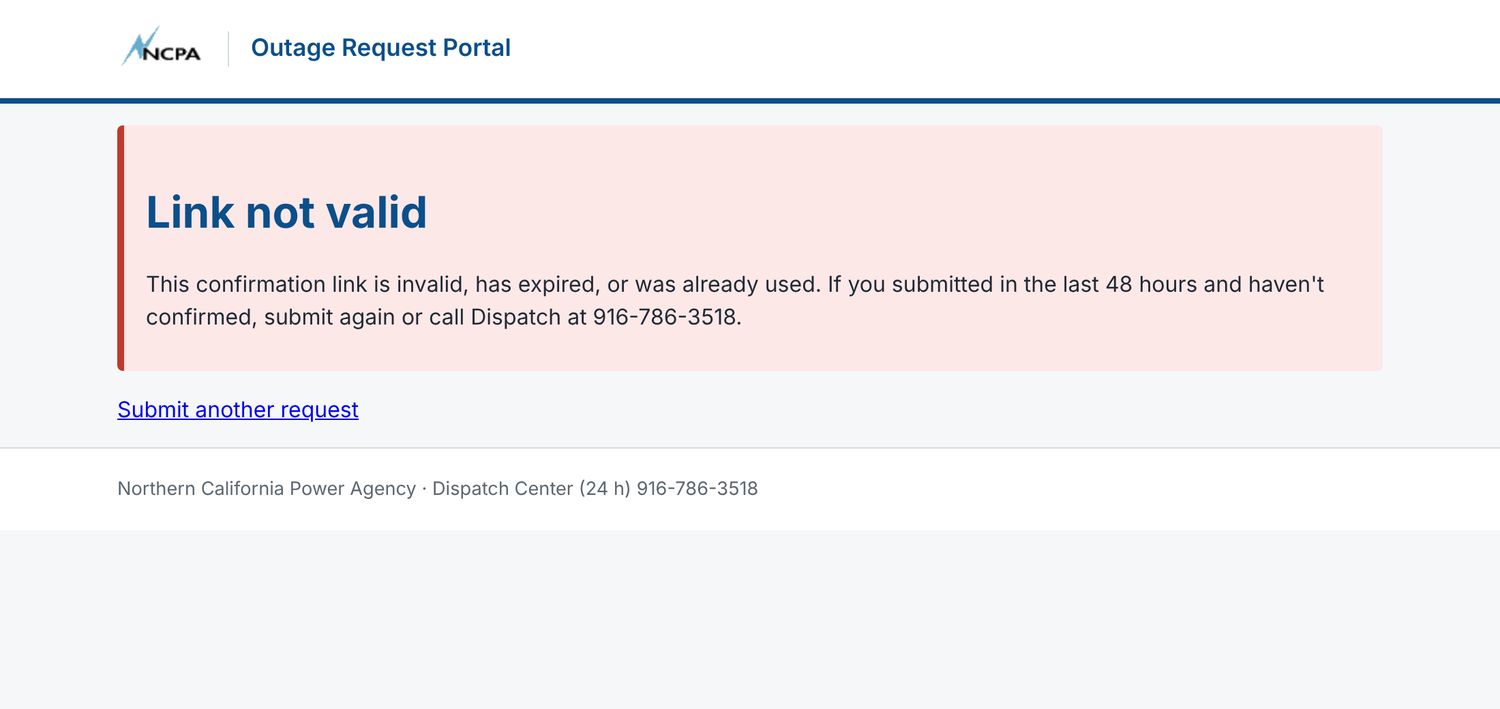
| "Link not valid" after pressing Confirm | The link expired (48 hours), was already used, or is incomplete. Submit again, or sign in first so no confirmation is needed. |
| No confirmation or sign-in email | Check spam or quarantine, and ask your IT team to allow mail from NCPA. Sign-in codes expire after 10 minutes. After 3 code requests in 10 minutes, wait before trying again. |
| "Too many submissions" or "Too many sign-in attempts" | Wait a few minutes and try again. |
| "The request could not be saved" | Try again. If it keeps failing, email the AFW form to outage@ncpa.com. |


Contacts
- NCPA Scheduling Coordinator (24 hours): 916-781-4237. Same-day outages and urgent questions.
- NCPA Dispatch Center (24 hours): 916-786-3518.
- outage@ncpa.com: outage coordination, the AFW form by email, and replies to portal emails.